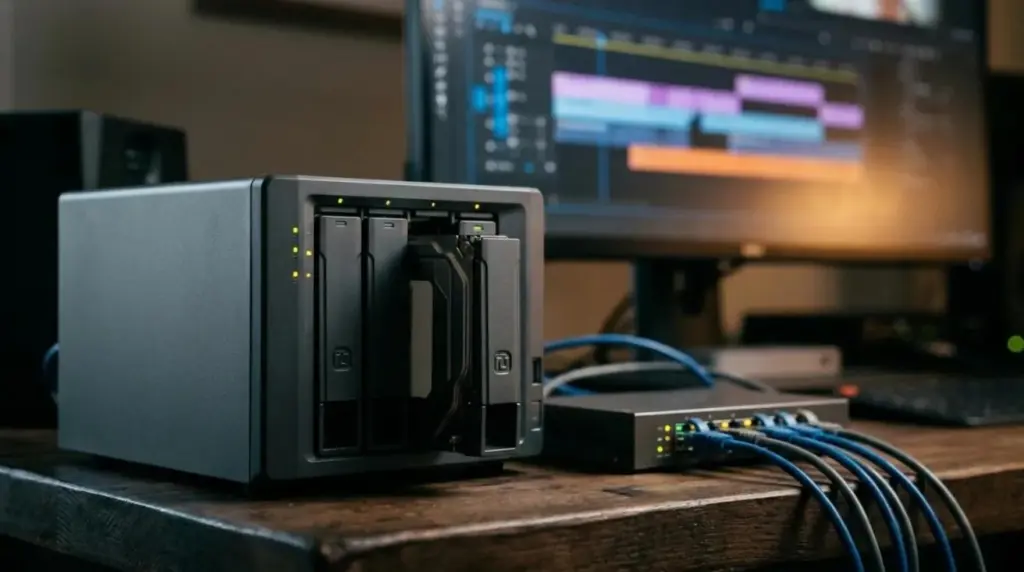
A NAS for video editing works when its network link can deliver your footage faster than your timeline consumes it. That sounds obvious, but most disappointing setups fail at that exact point: the drives are fine, and the bottleneck is a 1 GbE connection trying to feed several streams of high-bitrate footage.
So the useful starting point is your codec, not a product list. Once you know the bitrate of your footage and how many streams you play at once, the network speed, drive layout and capacity all follow from simple arithmetic.
Start With the Bitrate of Your Footage
Apple publishes target data rates for its codecs, which makes them a handy planning reference. According to Apple’s ProRes documentation, 1920×1080 footage at 29.97 fps runs at about 147 Mbps for ProRes 422 and about 220 Mbps for ProRes 422 HQ.
Apple also notes that data rates vary with codec, image content, frame size and frame rate. Treat these figures as a guide and check your own files. To measure a real clip, divide its size in megabits by its length in seconds.
Remember that network speeds are quoted in bits, while file sizes are shown in bytes. Divide by eight to convert. A 220 Mbps stream is about 27.5 megabytes per second, or roughly 99 GB per hour of footage.
How Many Streams Each Network Speed Can Carry
A network link never delivers its full rated speed to your editing application. For planning, we use 80% of the rated speed as a cautious working figure. That percentage is our assumption, not a standard, and your own overhead may differ.
The 4K column below assumes UHD footage needs about four times the data of 1080p, because it has four times the pixels. It is a rough estimate, since Apple’s page does not list a figure for that frame size.
| Link | Planning figure | 1080p ProRes 422 HQ streams | UHD ProRes 422 HQ streams (estimate) |
|---|---|---|---|
| 1 GbE | 800 Mbps | 3 | 0 |
| 2.5 GbE | 2,000 Mbps | 9 | 2 |
| 10 GbE | 8,000 Mbps | 36 | 9 |
Stream count is not the same as editor count. A multicam timeline plays several streams for one person, and exports or background caching add more traffic on top.
Also check the whole path. A 10 GbE NAS connected to a 1 GbE switch port behaves like a 1 GbE NAS. The NAS, every switch, the cables and the editing computer all need to support the speed you are planning for.
Choosing a Drive Layout
Your drive layout decides both speed and how much failure you can survive. The right choice depends on how much of the work can be rebuilt if something goes wrong.
| Layout | Drives lost before data is at risk | Good fit | Main trade-off |
|---|---|---|---|
| RAID 1 | 1 of 2 | A small two-bay unit | Half the raw capacity |
| RAID 5 | 1 | Small arrays where capacity matters | Risky during a long rebuild |
| RAID 6 | 2 | Larger arrays of big drives | Two drives of capacity go to parity |
| RAID 10 | 1 per mirror | Heavy multi-user editing | Half the raw capacity |
With large hard drives, a rebuild can take a long time, and the array stays exposed until it finishes. That is the main reason many people prefer two-drive protection as arrays grow.
SSD caching can help with repeated reads, such as a project everyone is working on. It helps less with footage nobody has touched yet, so it should not be your only answer to a slow array.
How Much Capacity You Actually Need
Work from hours of footage rather than from a round number. Using the figures above, ProRes 422 is about 66 GB per hour at 1080p and ProRes 422 HQ is about 99 GB per hour.
- Estimate the hours of raw footage on an average project.
- Multiply by the storage per hour for your codec.
- Add space for proxies, renders and exports.
- Multiply by the number of projects active at the same time.
- Leave spare room, because many storage systems slow down as they fill.
For example, a project with 20 hours of 1080p ProRes 422 HQ needs about 1.98 TB before proxies and exports. Three of those at once is close to 6 TB of active footage. Our render time and output storage planner can help you model backups and a safety buffer.
Proxies Change the Maths
If the network cannot carry your full-quality footage, proxies are often cheaper than new hardware. Editing a lower-bitrate copy cuts the traffic heavily, and many editing applications can switch back to the originals for final export.
Proxies are especially useful on 1 GbE, or for anyone working over a remote connection. Our guide to secure remote desktop setups covers the latency side of remote work.
Setting It Up for More Than One Editor
Several people opening the same project introduces problems that have nothing to do with speed. Who owns a project file, what happens when two people save, and how folders are named all matter as much as the hardware.
Animation studios face the same questions at a larger scale, so our guide on configuring a NAS for multiple animators is useful reading, even if you only cut video. It covers permissions, snapshots and folder structure in detail.
A NAS Is Not a Backup
RAID protects against a drive failing. It does nothing for a deleted folder, a corrupted project, ransomware or a fire. Those need a second copy somewhere else.
Finished projects rarely need to stay on fast storage. Moving them to cheaper archive storage frees space and gives you that second copy, and our guide to reducing cloud archive costs explains the retrieval fees to watch.
Frequently Asked Questions
Is 1 GbE enough for video editing on a NAS?
It can be, for one editor working with 1080p footage or proxies. By the planning figures above, it carries about three streams of 1080p ProRes 422 HQ, and it struggles with UHD.
Do I need SSDs in a NAS for video editing?
Not always. Several hard drives together can often outrun a 1 GbE or 2.5 GbE link, so the network limits you first. SSDs matter more at 10 GbE and with many users.
Can two editors work on the same footage at once?
Yes, both can read the same files. Project files are the risky part, so agree on who owns each one, or use your editing software’s shared project features.
Can I edit directly from a NAS?
Yes, if the network and drives keep up with your streams. If playback stutters, try proxies first, then check the slowest link in the network path.
Next Step
Measure one real clip from your own projects and work out its bitrate. That single number tells you whether your current network is enough. If you are also rendering from the same storage, read about finding storage bottlenecks before scaling a render farm.